The Playlist Creation page in DSHub allows you to build playlists by combining images, videos, templates from DSEditor, and apps such as YouTube, Instagram, Website, Weather, Announcements, Google Calendar, Google Sheets, Google Slides, Outlook Calendar, Microsoft Excel, Power BI, Canva, and PosterMyWall You can arrange items in order, set durations, add transitions, and preview the playlist before publishing to DSPlayer screens.
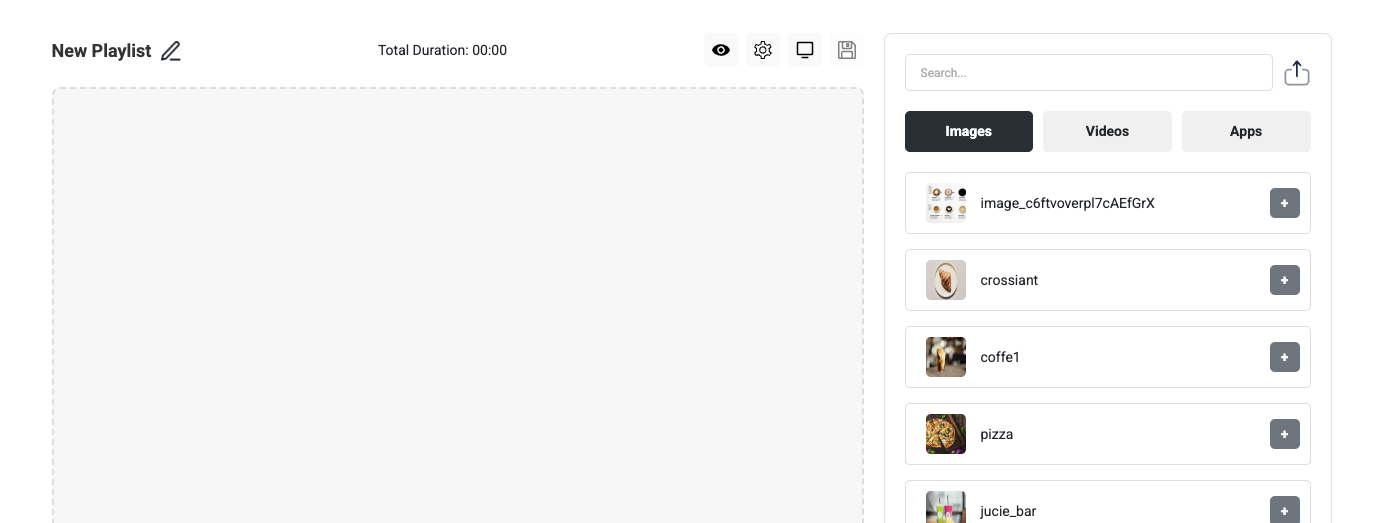
Step 1: Open Playlist Creation
-
From the Playlist Dashboard, click New Playlist (top-right).
-
A blank playlist editor will open where you can begin adding items.
Step 2: Add Media
-
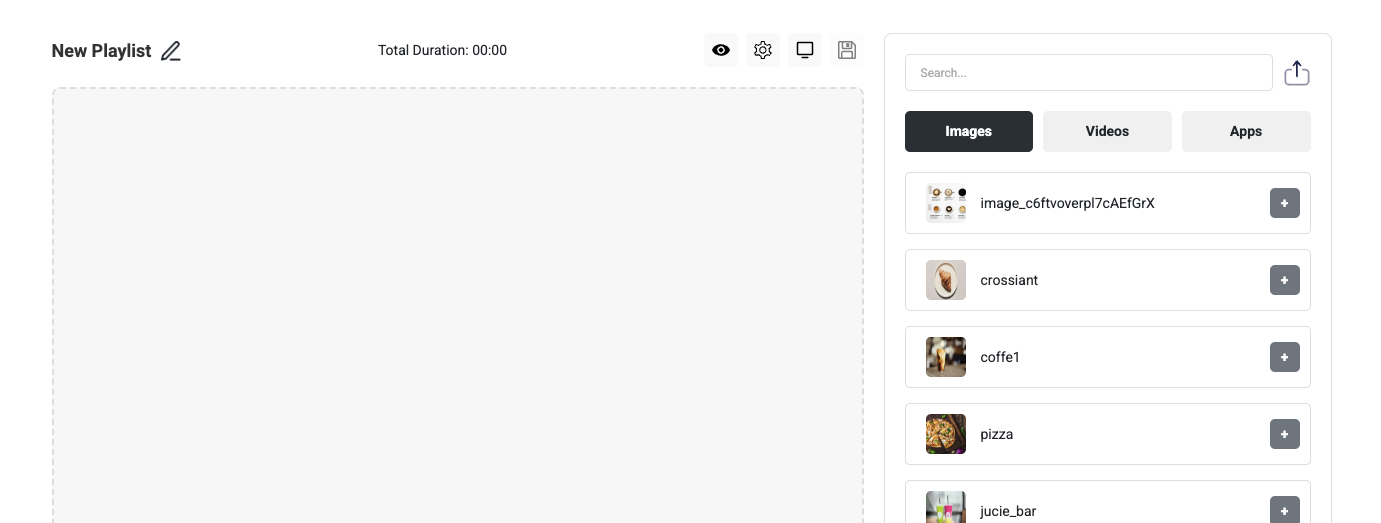
Use the right panel to browse and search for content.
-
Choose from:
-
Images – Uploads from your content library.
-
Videos – Uploaded or stored video assets.
-
Apps– Integrations like YouTube, Instagram, Website, Weather, Announcements, Google Calendar, Google Sheets, Google Slides, Outlook Calendar, Microsoft Excel, Power BI, Canva, and PosterMyWall.
-
-
Click the “+” button next to an item to add it to the playlist.
-
Or drag and drop the item directly into the playlist container on the left
Step 3: Add YouTube Videos
-
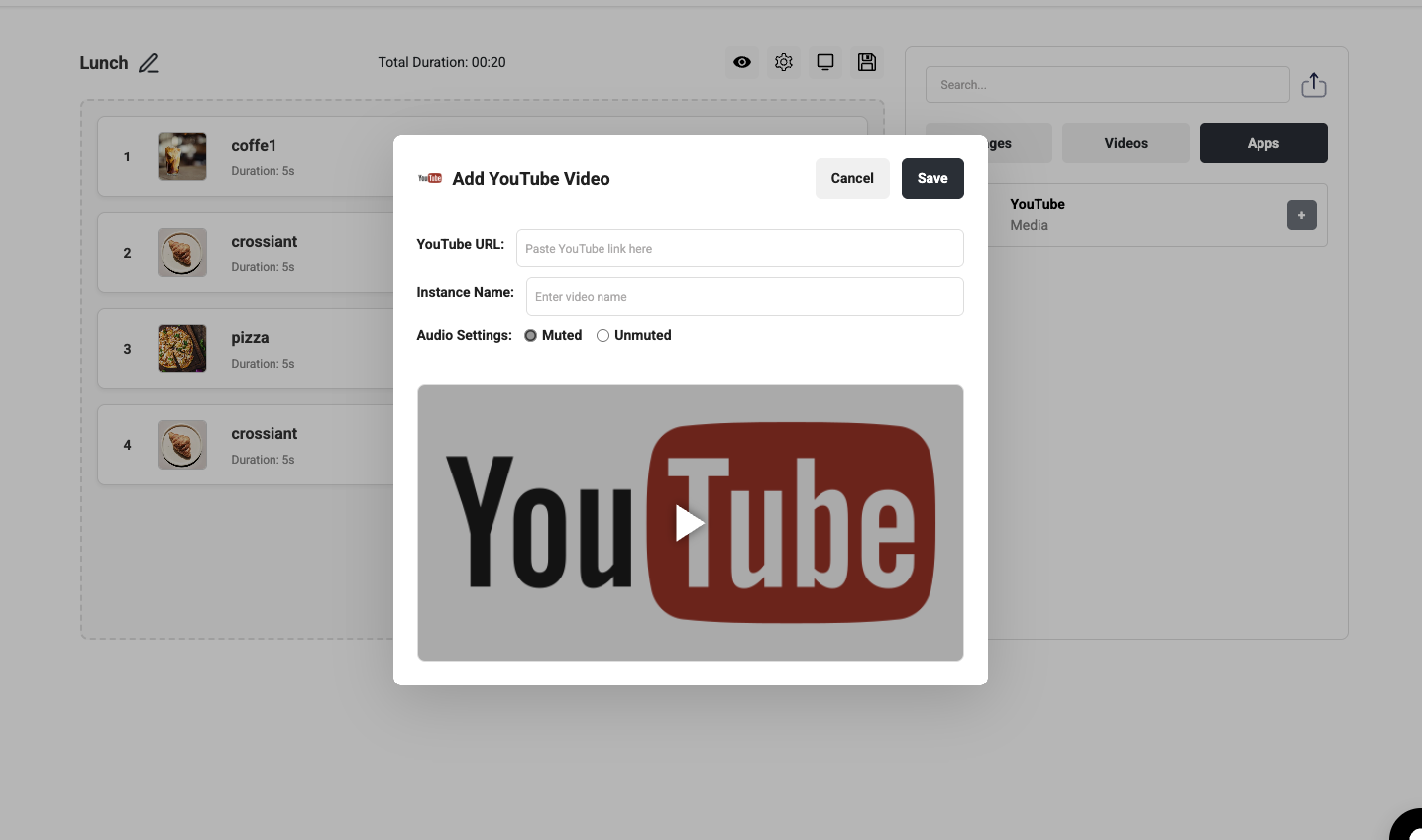
Click on the Apps tab, then select YouTube.
-
A popup will appear:
-
Paste the YouTube URL.
-
Enter an Instance Name (display name for the video).
-
Choose Audio Settings (Muted or Unmuted).
-
-
Click Save to add the video to your playlist.
Step 4: Arrange Playlist Items (Drag-and-Drop Sorting)
-
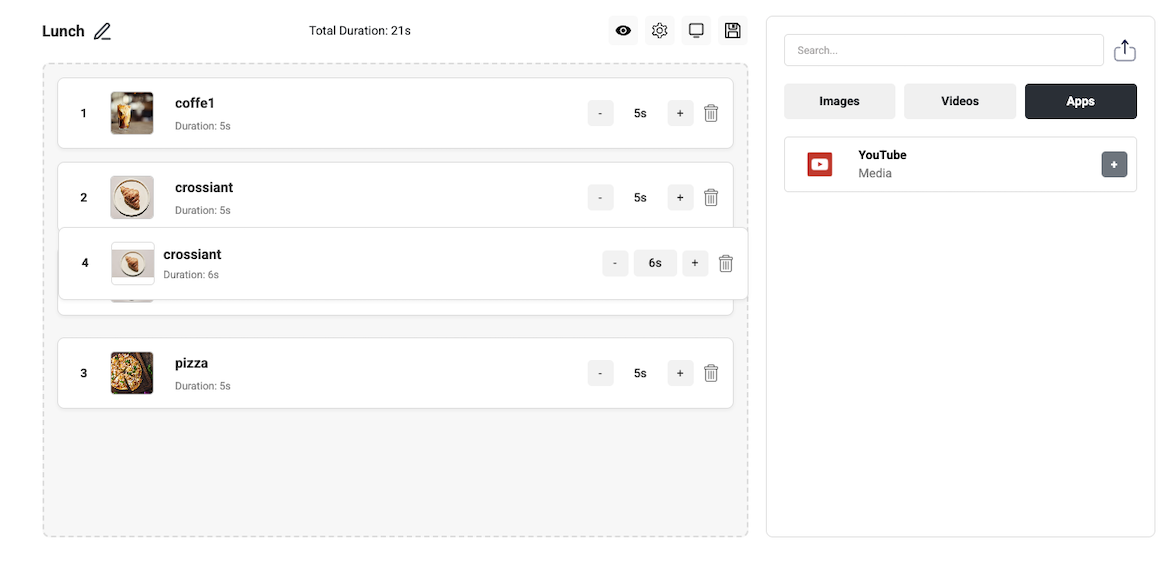
Items are listed in playback order in the left panel.
-
Click and hold an item, then drag it up or down to reorder.
-
This determines the playback sequence.
Step 5: Set Item Duration
-
Each item displays its playback duration (default: 5s).
-
Use the "+" or "-" buttons to adjust duration in seconds.